Posts tagged: tech

All posts with the tag "tech"

186 posts latest post 2026-10-06
Publishing rhythm
May 2026 | 3 posts

Plotly-And-Streamlit

Streamlit # I use for any EDA I ever have to do at work. It’s super easy to spin up a small dashboard to filter and view dataframes in, live, without the fallbacks of Jupyter notebooks (kernels dying, memory bloat, a billion “Untitled N.ipynb” files, etc.) At the highest level, streamlit lets you write a python script and call which will open up a web server with your streamlit stuff. The dashboard refreshes whenever you change the script so you can add capabilities in real time, super fast! I’ll show an example of using and to make a live dashboard to monitor system memory usage with. This is apart of my posts on psutil and deques … example at the bottom! Plotly # I’m not going to make a big time intro to plotly here - there’s a billion resources on the interwebs and the docs are really good. Suffice it to say it’s my goto plotting library for basically any and all needs. I’m currently exploring it for live data streaming as I’m not sure it’s the best solution but it’s the one I’m fam…

Starship

If you spend time in the terminal then you’ll want it to look somewhat pleasing to the eye. I used to ssh into servers with no customization, use to edit a file or two, then get back to my regularly scheduled programming in VS C**e… One of the first steps for me loving my terminal was a beautiful prompt… Prompt # The default sh/bash/zsh prompts are… to put it lightly… garbage… I can’t speak for other shells like fish simply because I do not use them but let me justify my trash talk. Here’s the default prompt… Then switching to you get something marginally better (plus tab completion!) But this still is super gross… there’s nothing to indicate file types and no status information readily available (ie. etc.) Oh-My-Zsh! # Now there are several ways to make your prmompt nicer depending on your shell (terminal emulator plays a role too). Now I use and there’s a great tool out there oh-my-zsh that brings a crazy amount of customization to the terminal experience. I do not use for theming th…
self-hosted-media

self-hosted-media

Self-hosting 1 or several media servers is another common homelab use-case. Getting content for your media servers is up to you, but I’ll show a few ways here to get content somewhat easily! YouTube Disclaimer at Bottom you-get # is a nice cli for grabbing media content off the web. Installation # or use ad-hoc with Usage # For example if I wanted to catch up on ancient Chinese military tactics I may go for off the Internet Archive… the is showing me the info of what would be downloaded without the flag (it’s like a dry run) Now I can toss that mp3 onto my server and study for world domination while I do the dishes! pytube # is a python implementation of a youtube downloader that works at the command line or in python! Installation # docs Usage # has a lot of functionality, but a quick one would be the so you can see what qualities are available will download the specific from the list. Notice that some are videos and others audio - so you can download just the music of a YT video. als…

EDA #

I work with data a lot, but the nature of my job isn’t to dive super deep into a small amount of datasets, I’m often jumping between several projects every day and need to just get a super quick glance at some tables to get a high level view.

When I’m doing more interactive exploration I’ve graduated from Jupyter cells with df_N.head() to using an amazing tool called visidata

However, Visidata is a terminal based application and I’m often in an iPython console… so is there a way to move even faster for my super quick summary views?

yes!

Skimpy #

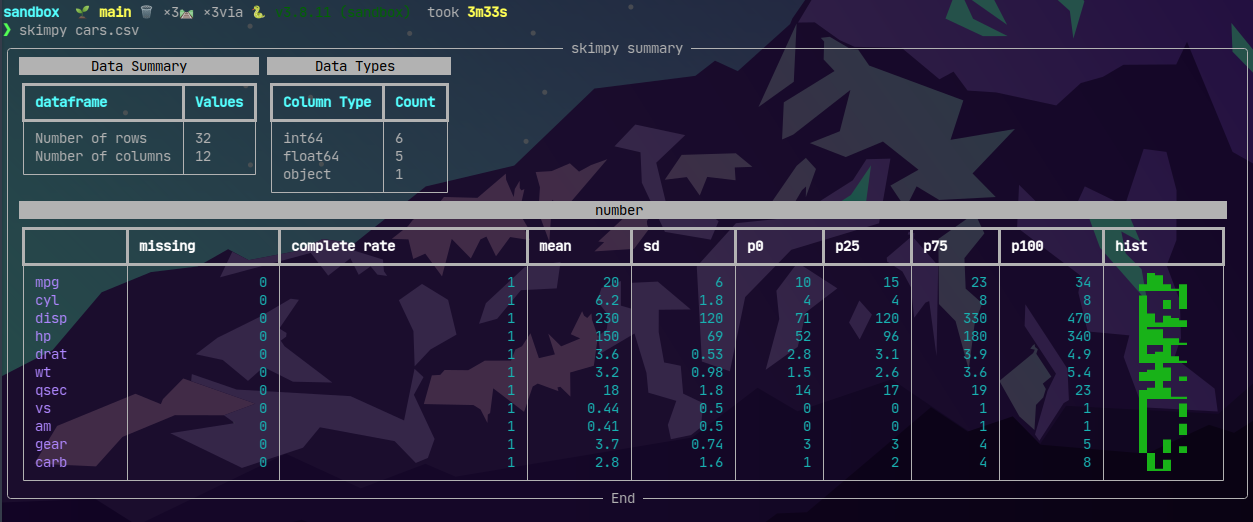
First thing to do is pip install skimpy and then it’s as easy to get some summary stats with skimpy <data>

Skimpy ZSH

This is super nice for seeing missing values in particular as well as the distribution shape of the data.

iPython #

But wait… I just said I’m normally in an iPython session but that was called from zsh.. If I’m hoping back into zsh I might as well use visidata to have more powerful exploration at my fingertips. So… can I see this table quickly without breaking my iPython workflow?

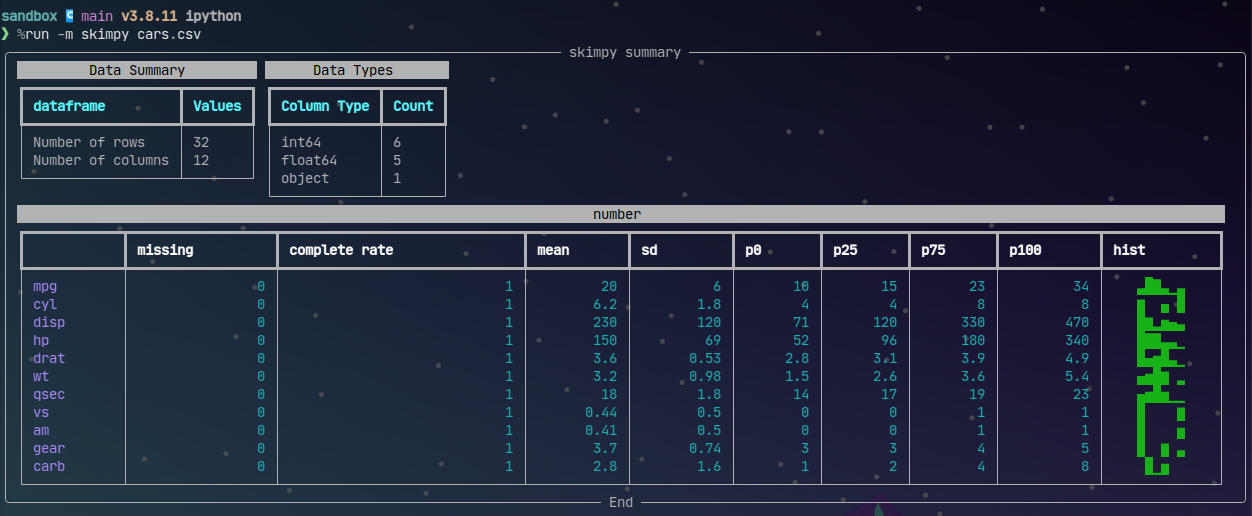
Of course you can with magic!

Skimpy iPython

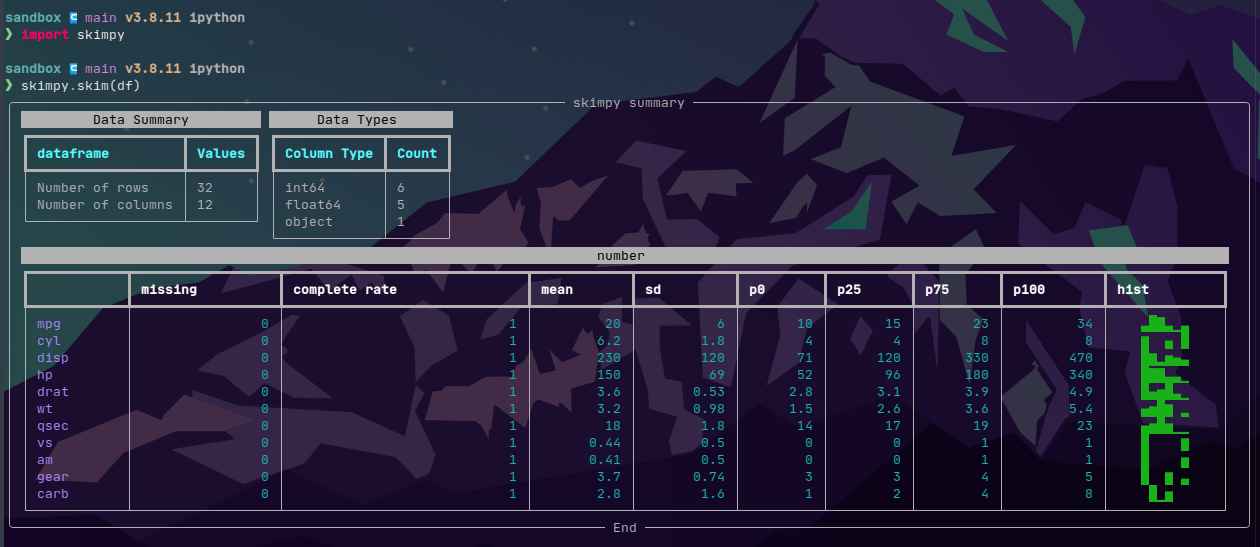
The above assumes you’re looking at a file, like you would in the terminal. skimpy works even better in iPython with from skimpy import skim then pass any DataFrame to skim!

Skimpy iPython2

Truenas-And-Wireguard

NAS # One of the most common use cases for self-hosting anything is a file share system. I have been a fan of TrueNAS for a while. I currently use TrueNAS Core at home, and plan to consider transitioning to TrueNAS Scale soon. Blog post forthcoming on that! VPN # I don’t write a ton about homelabbing yet but one of the first things to set up whether you have a massive homelab or a little raspberry pi would be a self-hosted VPN. I have notes on wireguard here. I finally have a need to put my TrueNAS box on my wireguard network in order to transfer files to other devices that are outside my LAN. There is a handy tutorial on setting this up via the GUI here. They walk you through setting up 2 tunables wireguard. One to enable the the connection and one to setup the network interface. Next you create a script which will check that the right directories exist and will copy the wireguard config that hasn’t been made yet to the proper location and finally starts wireguard. The above is just c…

I like to keep my workspace clean and one thing that I don’t personally love looking at is the __pycache__ directory that pops up after running some code. The *.pyc files that show up there are python bytecode and they are cached to make subsequent runs a tad faster. My stuff never really needs this bonus speed boost and so I came across a neat tool called pyclean!

Pyclean #

The easiest way (in my opinion) to run pyclean is to just use pipx run.

sandbox/src  🌱 main 🗑️  ×3🛤️  ×2via 🐍 v3.8.11 (sandbox)  took 9s
❯ ls
abcmeta.py  __pycache__  python-print-align.py  system-monitor-psutils.py

sandbox/src  🌱 main 🗑️  ×3🛤️  ×2via 🐍 v3.8.11 (sandbox)
❯ pipx run pyclean .
⚠️  pyclean is already on your PATH and installed at /usr/bin/pyclean. Downloading and running anyway.
Cleaning directory .
Total 1 files, 1 directories removed.

sandbox/src  🌱 main 🗑️  ×3🛤️  ×2via 🐍 v3.8.11 (sandbox)
❯ ls
abcmeta.py  python-print-align.py  system-monitor-psutils.py

Why not bash? #

You could accomplish something similar with rm **/*.pyc or find -n '*.py?' -delete but there’s a chance you’ll find something you don’t love gone. Also this won’t help our poor Windows friends out there! pyclean is fully python so it’s OS independent.

Credits! #

repo

Mike Driscoll has been posting some awesome posts about psutil lately. I’m interested in making my own system monitoring dashboard now using this library. I don’t expect it to compete with Netdata or Glances but it’ll just be for fun to see how Python can solve this problem!

Repo coming soon

Example code: #

Here’s a short snippit to get used/available/total RAM and disk space (on partitions that you probably care about)


import psutil
import socket

print(f"System Memory used: {psutil.virtual_memory().used // (1024 ** 3)} GB")
print(f"System Memory available: {psutil.virtual_memory().available // (1024 ** 3)} GB")
print(f"System Memory total: {psutil.virtual_memory().total // (1024 ** 3)} GB")


print(f"Hostname: {socket.gethostname()}")

partitions = psutil.disk_partitions()

for part in partitions:
    mnt = part.mountpoint
    if "snap" in mnt or "boot" in mnt:
        continue
    disk = psutil.disk_usage(mnt)
    print(f"Usage at {mnt} on {part.device}: {disk.used // (1024 ** 3)} GB")
    print(f"Free at {mnt} on {part.device}: {disk.free // (1024 ** 3)}GB")
    print(f"Total at {mnt} on {part.device}: {disk.total // (1024 ** 3)}GB")

Bonus Ipython tip! Save this to a script called my_script.py and in Ipython you can %run -m my_script to run it!

project ↪ main v3.8.11 ipython
❯ %run -m system-monitor-psutils
System Memory used: 25 GB
System Memory available: 5 GB
System Memory total: 31 GB
Hostname: ryzen-3600x
Usage at / on /dev/nvme1n1p2: 81 GB
Free at / on /dev/nvme1n1p2: 351 GB
Total at / on /dev/nvme1n1p2: 456 GB

If you work with a template for several projects then you might sometimes need to do the same action across all repos. A good example of this is updating a package in requirements.txt in every project, or refactoring a common module. If you have several repos to do this across then it can be time consuming… enter mu-repo

Mu #

mu-repo is an awesome cli tool for working with multiple git repositories at the same time. There are several things you can do:

  1. mu status will give you the git status of every registered repo (see below)
  2. mu sh will let you execute system level commands in every repo
  3. mu stash will stash all changes across all registered repos
  4. There’s literally a ton more but these are some handy ones

Registration #

mu tracks its own groups, and there is a default group when no particular one is active. It’s as simple as mu register proj1 prog2 ... to get repos registered


❯ mu register proj1 proj2
Repository: proj1 registered
Repository: proj2 registered

❯ mu status

  proj1 : git status
    On branch main

    No commits yet

    Untracked files:
    (use "git add <file>..." to include in what will be committed)
    requirements.txt

    nothing added to commit but untracked files present (use "git add" to track)

  proj2 : git status
    On branch main

    No commits yet

    Changes to be committed:
    (use "git rm --cached <file>..." to unstage)
    new file:   requirements.txt


Working with mu #

As you can see above I have two projects each with a requirements.txt added but not committed yet. Using mu I can stage this change across both repos at once.


❯ mu add requirements.txt

  proj1 : git add requirements.txt

  proj2 : git add requirements.txt

Then as you might imagine, I can make the commit in each repo


❯ mu commit -m "Add requirements.txts"

  proj1 : git commit -m Add requirements.txts
    [main (root-commit) 18376d7] Add requirements.txts
    1 file changed, 1 insertion(+)
    create mode 100644 requirements.txt

  proj2 : git commit -m Add requirements.txts
    [main (root-commit) 18376d7] Add requirements.txts
    1 file changed, 1 insertion(+)
    create mode 100644 requirements.txt

mu groups #

The other thing I got a lot of use out of recently was mu’s groups. At work I have about 40 repos cloned that are all based on the same kedro pipeline template. Some of these projects have been deprecated. I also have several more repos that are not kedro template - custom libraries or something. group let me utilize mu across different groups of repos.

Say proj2 is a deprecated project that I don’t need to worry about making changes to anymore. I don’t just have to unregister it, instead I can make a group called “active” and register proj1 in that group


❯ mu group add active --empty

~/personal
❯ mu group add deprecated --empty

~/personal
❯ mu group
  active
* deprecated

The * tells me which group is active. The --empty flag tells mu to not add all registered repos to that group. If I don’t want to use any groups then mu group reset will go back to the default group with all registered repos.

With groups I can register only the repos that I want to be working across in their own group and not worry about affecting other repos with my batch changes!

Wireguard

VPN # Virtual Private Networks are a big deal, and this shouldn’t be considered anything even close to a guide on using them. Here are just my notes and some setup for how I use wireguard at home. Wireguard # Wireguard is an awesome peer-to-peer VPN tunnel that makes it really easy for me to get into my home network when I’m out and about. My main reasons for this are 1. I don’t trust public wi-fi and 2. I want to use pi-hole for ad blocking when I’m not at home Wireguard can be configured as a “peer-to-site” VPN tunnel as well. My vpn setup let’s me jump to various machines on my network from anywhere! I use pivpn in a VM that’s already running to host my wireguard server. It’s super easy to setup just by following the instructions on the pivpn site. The reason I like it is that I have a nice for managing wireguard configs. When I’m ready to add a new client to my network, it’s as easy as and follow the instructions. The easiest part here is that you’ll be given a QR code in the termi…

Git-Worktrees-01

Git # Hopefully if you write code you are using git, if not go learn the basics of,,, and / like… right now. Assuming you are at least familiar with git then you probably work the same way I have since I’ve been using it. clone or initialize a repo checkout a branch, work on and when ready open a PR into then etc… What if you need to switch between branches for some reason? Often I’m jumping into projects with my co-workers left and right, and I’ll have changes that I’m either working on or exploring for them. When it’s time to switch branches I think there’s more elegant ways than this but I’ve always done this: the current changes checkout out the relevant branch helped out re-checkout my original branch the Now, that’s not awful but I think will make this nicer for a few reasons! Worktrees # Worktrees are linked branches that have their own directories somewhere on your computer. To checkout a branch you don’t have to worry about stashing any changes, you just into the directory of…