Quick tips and learnings

118 posts latest post 2026-04-03
Publishing rhythm
Dec 2025 | 2 posts

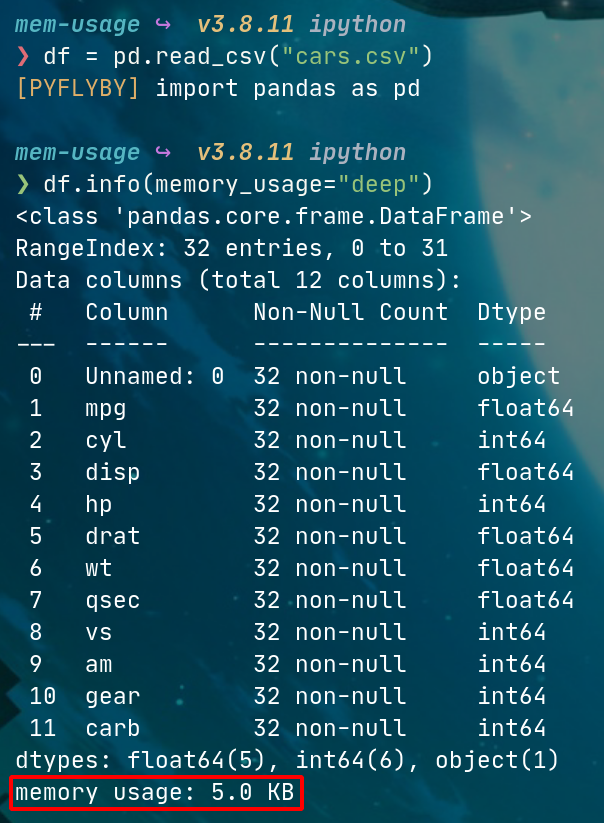
I have often wanted to dive into memory usage for pandas DataFrames when it comes to cloud deployment. If I have a python process running on a server at home I can use glances or a number of other tools to diagnose a memory issue… However at work I normally deploy dockerized processes on AWS Batch and it’s much more challenging to get info on the dockerized process without more AWS integration that my team isn’t quite ready for. So TIL that I can get some of the info I want from pandas directly!

DataFrame.info()

I didn’t realize that df.info() was able to give me more info than just dtypes and some summary stats… There is a kwarg memory_usage that can configure what you need to get back, so df.memory_usage="deep" will give you how much RAM any given DataFrame is using! Amazing tool for finding issues with joins or renegade source data files.

df = pd.read_csv("cars.csv")

df.info(memory_usage="deep")
DataFrame Memory Usage

I run pi-hole at home for ad blocking and some internal DNS/DHCP handling.

pi hole posts on the way

One thing I’ve never put too much thought in is asking “how well am I doing at blocking?” There’s lots of ways to measure that depending on what you care about but I just learned of adblock tester. It’s awesome and gave me a quick glimpse into how my pi-hole is performing on keeping my webpages clean and my DNS history private!

Credits to d3ward for the awesome tool!

I host a lot of services in my homelab, but they’re mostly dockerized applications so I have never had to care much about how content gets served up. Today I had several little concepts click into place regarding webservers, and it was a similar experience to when I started homelabing and didn’t know what a “server” was in the first place.

Servers

A “server” can have a lot of different meanings but specifically in my world it was a physical server, like my PowerEdge R610 which acts as my main “home server”. But then on my server, I have other servers… Jellyfin is my main media server - but that’s obviously not a hardware thing, that’s software. This is certainly not a groundbreaking thing but it was a tiny piece to the puzzle that I was missing… that “server” is highly contextual.

Webservers

Something that confused the heck out of me when I first started down the road of having a server was what a webserver even was… I always thought the “webserver” was just “a server that hosts a website”… and yes, that’s true, but also it wasn’t true in how I understood “server”. It turns out that across my 40-odd dockerized services I have at home that I must have about 40-odd web servers running, each docker container is spinning up its own!

So something I have wanted to do for a long time is put my theology notes online for my small group to access whenever they might want… it doesn’t need to be fancy or anything. My issue was not knowing what to even Google. I tried “How to serve up static html” but that kind of search is for people who know what a “static” site is - I am not one of those people. I kept running across nginx and apache things, wordpress and other website building tools, etc. In fact I only recently learned that JavaScript assets cann still be considered static so I am a complete baby in the web-dev space.

What I really wanted was just a simple landing page with a link to each of my “posts” which are in the form of a single html file each that I can easily export from my tiddlywiki (I have a post about tiddlywiki here)

The first win python -m http.server right in the directory I kept my html files in and that got me what I wanted functionally. But then I wanted just a hair more organization… I started looking for a way to dynamically generate an index for a directory of html files but again the verbiage of that Google search just wasn’t helping me - I didn’t want anything complicated and I knew that what I wanted had to be easy…

The Index

Luckily I randomly came across a SO that mentioned a Linux utility called tree which does exactly what I wanted!

See my TIL on tree here

So now it goes like this:

  • Take notes on X in my tiddlywiki
  • Export that tiddler to a html file
  • Put that html file into a notes folder in my github repo for small group notes
  • Use tree to generate an index.html of each of those files in the notes directory
  • Use python -m http.server to start a web server that lands me at the index.html and now I can click through to any post!

It’s not fancy but it’s functional… This site/blog is built with markdown and markata and I wanted way more functionality in my tech notes. But for this simple use case I learned a ton about how content gets served up on a webpage and my small group benefits from the easy access as well!
I wanted a quick way to generate an index.html for a directory of html files that grows by 1 or 2 files a week. I don’t know any html (the files are exports from my tiddlywiki)…

tree is just the answer.

Say I have a file structure like this:

./html-files
├── file1.html
└── file2.html

To generate a barebones simple index.html we can use tree as follows:

tree ./html-files -H "." -L 1 -P "*.html"

and get the following:


<!DOCTYPE html>
<html>
<head>
 <meta http-equiv="Content-Type" content="text/html; charset=UTF-8">
 <meta name="Author" content="Made by 'tree'">
 <meta name="GENERATOR" content="$Version: $ tree v1.8.0 (c) 1996 - 2018 by Steve Baker, Thomas Moore, Francesc Rocher, Florian Sesser, Kyosuke Tokoro $">
 <title>Directory Tree</title>
 <style type="text/css">
  <!--
  BODY { font-family : ariel, monospace, sans-serif; }
  P { font-weight: normal; font-family : ariel, monospace, sans-serif; color: black; background-color: transparent;}
  B { font-weight: normal; color: black; background-color: transparent;}
  A:visited { font-weight : normal; text-decoration : none; background-color : transparent; margin : 0px 0px 0px 0px; padding : 0px 0px 0px 0px; display: inline; }
  A:link    { font-weight : normal; text-decoration : none; margin : 0px 0px 0px 0px; padding : 0px 0px 0px 0px; display: inline; }
  A:hover   { color : #000000; font-weight : normal; text-decoration : underline; background-color : yellow; margin : 0px 0px 0px 0px; padding : 0px 0px 0px 0px; display: inline; }
  A:active  { color : #000000; font-weight: normal; background-color : transparent; margin : 0px 0px 0px 0px; padding : 0px 0px 0px 0px; display: inline; }
  .VERSION { font-size: small; font-family : arial, sans-serif; }
  .NORM  { color: black;  background-color: transparent;}
  .FIFO  { color: purple; background-color: transparent;}
  .CHAR  { color: yellow; background-color: transparent;}
  .DIR   { color: blue;   background-color: transparent;}
  .BLOCK { color: yellow; background-color: transparent;}
  .LINK  { color: aqua;   background-color: transparent;}
  .SOCK  { color: fuchsia;background-color: transparent;}
  .EXEC  { color: green;  background-color: transparent;}
  -->
 </style>
</head>
<body>
        <h1>Directory Tree</h1><p>
        <a href=".">.</a><br>
        ├── <a href="./file1.html">file1.html</a><br>
        └── <a href="./file2.html">file2.html</a><br>
        <br><br>
        </p>
        <p>

0 directories, 2 files
        <br><br>
        </p>
        <hr>
        <p class="VERSION">
                 tree v1.8.0 © 1996 - 2018 by Steve Baker and Thomas Moore <br>
                 HTML output hacked and copyleft © 1998 by Francesc Rocher <br>
                 JSON output hacked and copyleft © 2014 by Florian Sesser <br>
                 Charsets / OS/2 support © 2001 by Kyosuke Tokoro
        </p>
</body>
</html>

which looks like this when you serve it up with python -m http.server

On my team we often have to change data types of columns in a pandas.DataFrame for a variety of reasons. The main one is it tends to be an artifact of EDA whereby a file is read in via pandas but the data types are somewhat wonky (ie. dates show up as strings, or a column that should be a integer comes in as float, etc.). The best solution I think is to leverage the dtypes keyword argument in which pd.read_X method is used. However there is another way which is to coerce the data types at runtime instead of loadtime.

A handy way to do this is by using pandas.DataFrame.select_dtypes…

Here is an example of finding columns read in as datetime64 and the developer would prefer to use pandas datetimes.

df = pd.read_csv("./file-with-confusing-dtypes.csv")
for c in df.columns:
    if df[c].dtype == "datetime64":
        df[c] = pd.to_datetime(df.c)

Here is the difference in code flow between select_dtypes and manually finding the datetype64 columns:

df = pd.read_csv("./file-with-confusing-dtypes.csv")
for c in df.select_dtypes('datetime64'):
    df[c] = pd.to_datetime(df.c)

The difference isn’t huge but it’s the little steps in leveling up that turn script-kitty scripts into clean looking functions.

I ran into an issue where I had some copy-pasta markdown tables in a docstring but the generator I used to make the table gave me tabs instead of spaces in odd places which caused black to throw a fit. Instead of manually changing all tabs to spaes, or trying some goofy :%s/<magic tab character>/<%20 maybe?>/g I learned that Vim has my back…

:retab

Stow is a great tool for managing dotfiles. My usage looks like cloning my dotfiles to my home directory, setting some environment variables via a script, then stowing relevant packages and boom my config is good to go…

cd ~
git clone <my dotfiles repo>
cd dotfiles
# env variable stuff ignored here
stow zsh  # This will symlink my .zshrc file which is in ~/dotfiles/zsh to ~/.zshrc

By default stow will stow packages up one directory from the root directory. In this example the root directory is ~/dotfiles and the package is zsh. So the files in the zsh package will symlinked into ~/.

stow makes it easy to share dotfiles across machines, or safely experiment with config changes while always being protected by git since your dotfiles are in a git repo! …They are in a git repo… right?

Check out stow for a brief introduction to stow

What if I want to stow a package somewhere else? Boom, that’s where -t comes in…

Maybe I don’t like having my dotfiles repo at $HOME and instead I want it in ~/git or ~/personal just to stay organized… Well then I could have the same workflow except the stow command looks like this:

stow zsh -t ~/
#or
stow zsh -t $HOME

After carefully staging only lines related to a specific change and comitting I suddenly realized I missed one… darn, what do I do?

Old me would have soft reset my branch to the previous commit and redone all my careful staging… what a PIA…

New me (credit: ThePrimeagen)…

# stage other changes I missed
git commit --amend --no-edit

Sometimes I need to manually set a static IP of a Linux machine. I generally run the latest version of Ubuntu server in my VMs at home.

In Ubuntu 20 I’m able to change up /etc/netplan/<something>.yml

network:
  version: 2
  ethernets:
    enp0s4:
      addresses: [192.168.1.{Static IP}/24]
      gateway4: 192.168.1.1
      nameservers:
        addresses: [192.168.1.1, 1.1.1.1]

gateway4 is your router address nameservers is a list of desired DNS servers for that machine to use. I usually use my router which is configured to use my pi-hole as my primary DNS, then set 1.1.1.1 (CloudFlare) as a backup

Hit it with the sudo netplan apply and you should be good to go!